TRANSCRIPT REUSE · QUOTE BOUNDARIES
How to Find Quote Boundaries in an Instagram Transcript
Use the transcript to find the exact spoken passage, then use SRT or VTT to record its first and last cue. Put that range beside the original video and make the actual cut in your video editor; Reel Transcript Lab returns text and subtitle files, not a finished clip.
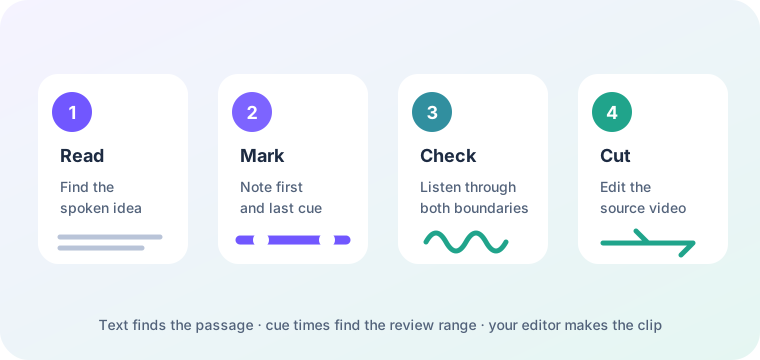
What a quote boundary means
A quote boundary is the point where a spoken idea starts and the point where it finishes. It is a practical editing note, not a claim that every word begins exactly on a subtitle cue. One idea can span several returned segments, and a speaker can pause inside a cue. Your boundary is ready only after you listen to the source video around both ends.
This distinction matters when a podcast, interview, or tutorial is being turned into a short social clip. The transcript helps you search the words. The timed file gives you a repeatable place to begin checking. The video editor still decides the cut, the frame, the crop, and the final export.
The four-pass quote workflow
- Write the job before you search. State who the clip is for and what one answer it should deliver. A short purpose keeps you from selecting a memorable sentence that has no context. Keep this sentence in your own notes; the site does not save a history after you leave.
- Find the idea in readable text. Paste one public Instagram Reel, post, TV, or supported share link into the tool. Use the on-page result or the TXT download to search for the phrase, then copy a short private marker such as “definition,” “example,” or “turning point.” Do not treat a line break in TXT as an audio boundary.
- Mark the first and last cues. Open the SRT or VTT file and write down the cue that contains the first word and the cue that contains the last word. If the thought starts halfway through a cue, note that it needs an audio check instead of pretending the cue is word-level timing.
- Listen, then cut the source. Open the original video in your editor, jump near the recorded start and end, and listen through the transition. Add enough lead-in for a natural sentence and enough tail for the last word to land. Make the cut, captions, crop, and export in the editor; this site does not modify the source video.
What this Instagram transcript tool gives you
The workflow above is tied to the current output contract of Reel Transcript Lab. These are the checks you can repeat on every request:
- One public link goes in. The page accepts a complete HTTPS Reel, video-post, TV, or supported share path. A profile or Story link is rejected by the link validator before the transcript request begins.
- The result is segment data. The browser reads each returned segment's text, start offset, and duration. It joins nonblank text for the readable transcript while preserving the timing fields needed by the subtitle formatters.
- Copy and TXT are for locating words. The copy action and TXT download contain joined speech without cue numbers or timecodes. Search that text for the phrase you want, then keep a short label beside it rather than drafting from a long pasted block.
- SRT and VTT are for locating time. SRT uses numbered cues and comma-separated millisecond timestamps. VTT begins with
WEBVTTand uses period-separated timestamps. In both formats, a cue end is calculated from the segment start plus its duration. - There is no clip editor. The page does not trim, crop, join, render, or save a video. It also does not produce speaker labels or a word-level boundary map. Those decisions stay in the editor where you can hear and see the original.
- An empty result is not a silent promise. When returned segments contain no nonblank words, the page shows “No speech was found in this video.” Read the message, listen to the source, and decide whether another public link or a different source file is appropriate. Do not manufacture a quote from an empty response.
The page keeps the provider call behind its same-origin route. The browser sends the cleaned public URL; it does not need a token in the page, and the transcript response is rendered only after the returned content list passes the client-side shape checks. This is why a link can be valid yet still produce a useful error message or an empty speech result instead of a made-up transcript.
The download controls are deliberately narrow. Copy and TXT give you joined text for searching. SRT and VTT are generated from the same returned segment list, so a correction you make in your notes is not silently written back into the source video. The site also processes one link at a time, keeps no history, and does not add speaker labels, OCR, translation, clipping, or batch processing. Those boundaries tell you which checks still belong in your own editing workflow.
Because each step leaves a small note—phrase, first cue, last cue, and editor check—you can repeat the same review later without turning a transcript download into an unsupported claim about the video.
Choose the file by the question you are answering
| Question | Use | Record |
|---|---|---|
| What words express the idea? | Copy text or TXT | A short phrase marker and your own description of the point. |
| Where should I start checking? | SRT or VTT | The first cue, then the exact spoken start after listening. |
| Where should I stop checking? | SRT or VTT | The last cue, then the natural end of the sentence or thought. |
| Is the final clip ready? | Original video plus editor | A listened-through cut, corrected captions, and an export check. |
TXT is the fastest way to find an idea. SRT and VTT are a map to the neighborhood where you should listen. Neither file replaces that listening pass, and neither file contains the rendered clip.
Handle pauses, corrections, and overlapping ideas
A speaker can begin a thought, pause, correct a word, and continue it in a later segment. Mark the whole idea first, then decide whether the pause helps the clip. If you remove the pause, listen to the join in the editor. A transcript can show the words that were returned, but it cannot prove that a hard cut will sound natural.
When a quote relies on a name, number, or technical term, replay the source and correct the working note before you cut. The visible transcript may be enough to find the passage, while the audio is the check for spelling and meaning. Keep a separate note for any correction so your exported captions and description do not quietly inherit an unverified word.
If two speakers overlap, treat the cue as a review region rather than a clean quote. This page does not provide speaker separation. Choose a section you can attribute after listening, or leave the passage out of the short clip.
Do not confuse a quote range with a publishing package
A useful boundary answers “where do I listen and cut?” It does not answer every publishing question. You still need to decide whether the excerpt has enough context, whether the source can be reused, what on-screen text is needed, and whether the final captions match the audio. If the video contains text cards, names, or demonstrations, inspect the picture separately; spoken transcript output does not read every word printed in the frame.
Keep the transcript, the boundary note, and the final edit as three separate artifacts. That small separation makes it obvious which part came from the returned speech segments, which part came from your listening, and which part came from your own editorial decision.
Frequently asked questions
Can this page make the short clip for me?
No. It returns readable transcript text and downloadable SRT and VTT files. Use the cue range as an editing note, then cut and export the original video in your own editor.
Should I start with TXT or SRT?
Start with TXT when you are searching for an idea. Open SRT or VTT when you have found the words and need a repeatable time range to check in the source video.
Why does the cue start before or after the exact word?
A cue covers a segment, not necessarily one word. Treat its start and end as a search range. Listen around both points and set the final cut where the spoken thought actually begins and ends.
What if there is no speech?
If the result says “No speech was found in this video,” there is no returned text from which to choose a quote. Follow the recovery steps in the troubleshooting guide and do not invent words.
Does the transcript include text shown on screen?
Not as a guaranteed part of the spoken transcript. Review visible text against the video itself and keep that visual check separate from the quote boundary.